.png?width=200&height=89&name=CC%20logo%20blue-1%20(1).png)
Report metadata can be added per report or in bulk using the bulk import tool.
Single report
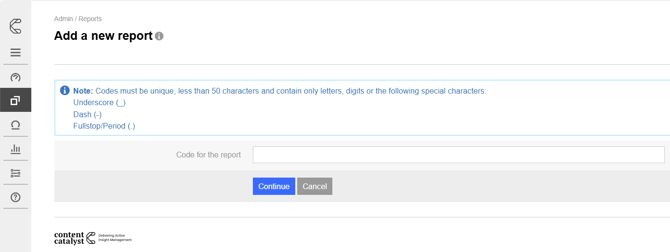
When creating a new report via Admin > Content > Reports > Add new report you will be prompted to supply the report code to continue.
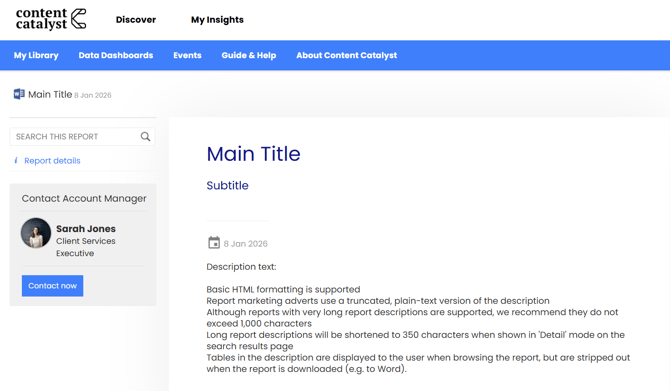
In the summary section, you apply metadata for the report inlcuding:
Title: Main title used for the report.
Short title:
- The short title field is optional and has a limit of 20 characters.
- When present, the short title is used in place of the full title when displaying a report series.
Publication date: Set a date for when the report is published or set to be published.
Subtitle:
- The sub-title field is not compulsory and has a limit of 200 characters.
- When present, the sub-title will show in detailed view within search results, on the report details page and the reports marketing page.
Description:
The description is shown on the top page of the report, on the marketing pages and also in report adverts shown across the site.
- Basic HTML formatting is supported
- Report marketing adverts use a truncated, plain-text version of the description
- Although reports with very long report descriptions are supported, we recommend they do not exceed 1,000 characters
- Long report descriptions will be shortened to 350 characters when shown in 'Detail' mode on the search results page
- Tables in the description are displayed to the user when browsing the report, but are stripped out when the report is downloaded (e.g. to Word).
Status: See Setting and Editing the Report Status.
Type: Set the report type: See the key types below.
Normal
Used for the vast majority of reports, uses a book icon for licensed reports and a red padlock icon for unlicensed reports.
Licensed

Unlicensed

Used when only PDF content is available, uses a PDF icon

External
Used for linking to external systems, uses a database-style icon.

🔔Note: See External reports.
PowerPoint
Uses a PowerPoint file icon

Excel
Uses a Excel file icon.

Word
Uses a Word file icon.

Main Language: Set main Language.
- Setting the main language of a report will dictate the translation options made available to users.
Keywords/phrases: Set keywords and phrases.
- This report will appear higher on searches containing any words or phrases in this field
Once the metadata has been applied it will appear as shown in the examples below.
Showcase page:

Main Site:
Multiple reports (Bulk Import products)
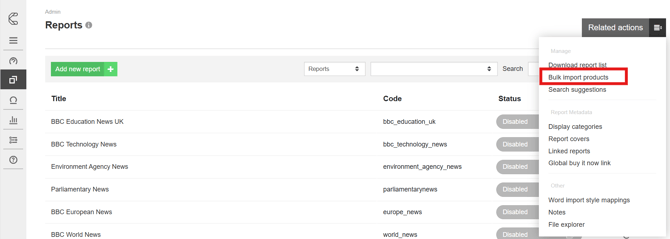
You can also populate the metadata for multiple reports in bulk via our Bulk Import tool by clicking on Admin > Content > Reports> Related Actions > Bulk Import products.
🔔Notes: See Bulk Upload Reports (Metadata).
Once uploaded, you will be able to review and edit before finalising the completed template import.
Amending an Existing report
You can navigate to an existing report and update metadata by heading to Admin > Content > Reports.
Navigate to an existing report.
Select the edit icon and update metadata in the summary section.
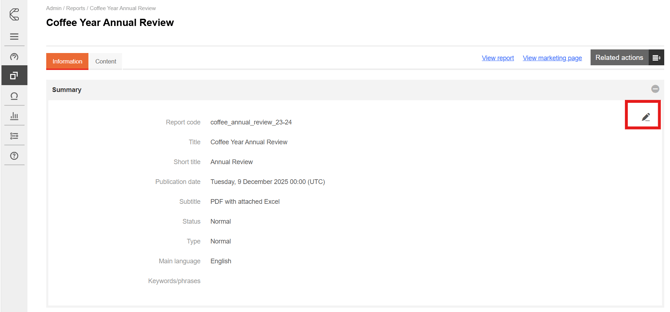
🔔Note: The report code can not be ameneded once it has been created.
Once the metadata, has been set you can import content to your report.
🔔Note: See Importing Content.