.png?width=200&height=89&name=CC%20logo%20blue-1%20(1).png)
Adding Analysts is a great way to engage with readers.
Subscribers can have favourite analysts and can see other articles they have contributed to.
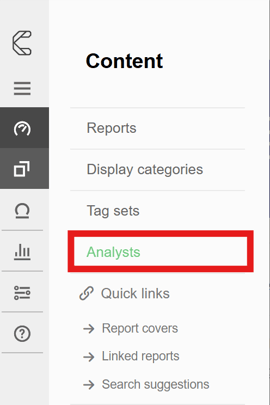
To create an Analyst, first head to Admin > Content > Analysts.
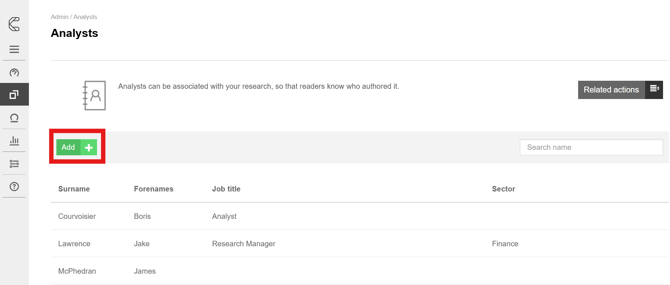
Select the Add button to create a new analyst.
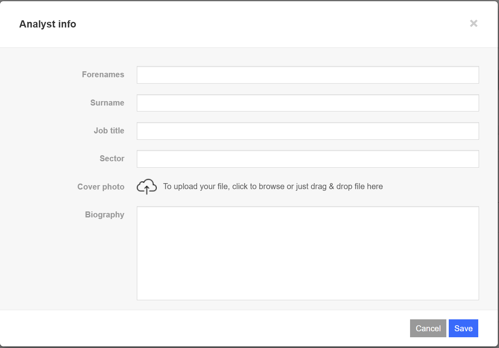
Add the relevant details, including a biography which will appear on the report landing pages.
Add a cover photo via the upload option.
Bulk Add Analysts
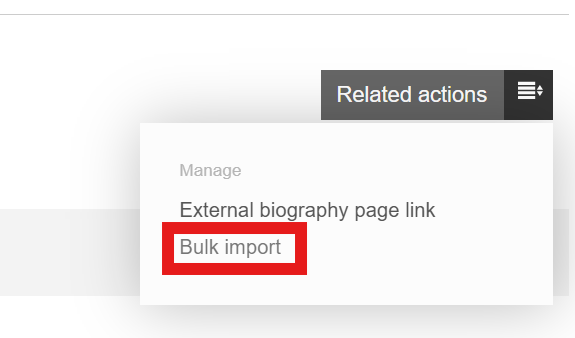
To bulk add Analysts, use the Analysts > related actions > Bulk import.
Upload an XLS, XLSX or CSV file, with the following structure:
- Forename and Surname - The name of the analyst.
- Job title - Optional. The analysts displayed job title.
- Sector - Optional. The analysts displayed sector.
- Biography - Optional. The analyst's biography.
You will be given an opportunity to review and edit the imported data before completing the import.
🔔Note: This tool is for uploading new analysts only - please ensure no duplicates exist.
External biography Links
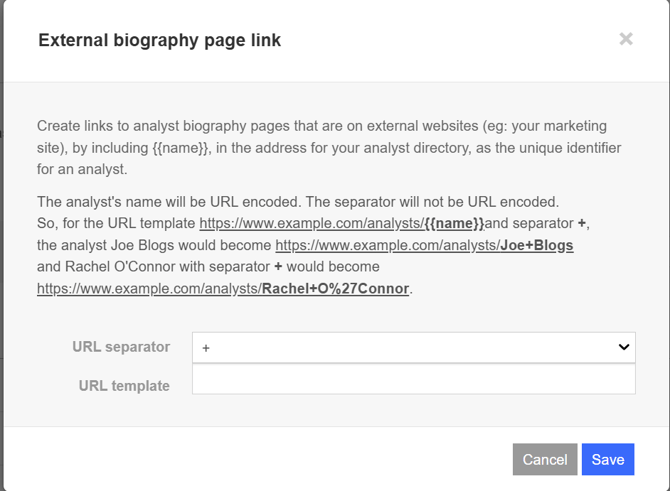
To add external biography links, use the Analysts > related actions > External biography page link
Links to analyst biography pages that are on external websites (eg: your marketing site), by including kb-article-module-5, in the address for your analyst directory, as the unique identifier for an analyst.
The analyst's name will be URL encoded. The separator will not be URL encoded.
So, for the URL template https://www.example.com/analysts/kb-article-module-5and separator +,
the analyst Joe Blogs would become https://www.example.com/analysts/Joe+Blogs
and Rachel O'Connor with separator + would become https://www.example.com/analysts/Rachel+O%27Connor.
Searching by Analyst
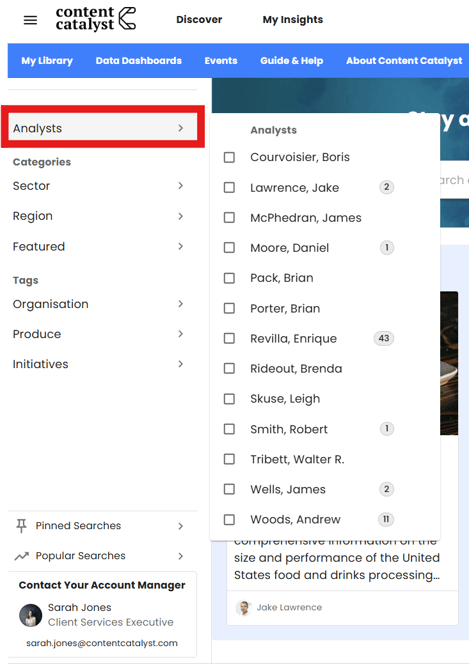
Once analysts have been created, they will appear in the Showcase left-hand menu. Selecting an analyst from this menu will highlight the associated reports.
🔔Note: See Creating a report to learn how to add analysts to selected reports.