
This guide compares the two ways an integration can authenticate with the Content Catalyst API:
- Password authentication: call
POST /api/v3/authenticatewith the user's username and password, then send the returned token in a BasicAuthorizationheader. - API keys: send a long-lived key in an
X-Api-Keyheader.
It covers sample requests in Bash, Python, PowerShell and C#, error responses, key rotation, revocation, and managing keys securely.
All examples use the V3 API (/api/v3/...). https://{your-site} stands for your platform URL.
⚠️
POST /authenticatewill be retired from February 2027. Password authentication still works today. After it's retired, integrations that use it will no longer be able to get a token, so please move them to API keys before then.
1. Change matrix
| Password authentication | API key | |
|---|---|---|
| Who the credential belongs to | One user | One user |
| Permissions | Exactly the user's permissions | Exactly the user's permissions |
| What the integration stores | The user's password, the same one they use to sign in to the site | An API key. The password is never stored |
| Getting a credential | Call POST /api/v3/authenticate with username and password. It returns a token |
Create a key once, in the UI or through the API (section 5) |
| What you send on each request | Authorization: Basic base64(username:token) |
X-Api-Key: <key> |
| Steps before the first call | Authenticate, build the Basic header, cache it | None |
| How long the credential lasts | 1 hour. Using it in its last 10 minutes extends it by an hour, so it expires after about an hour of inactivity | An expiry you choose when creating the key: 6, 12, 18 or 24 months in the UI, or any date up to 2 years ahead through the API |
| Refresh logic | Needed. Cache the header and re-authenticate only when you get a 401 |
Not needed. Replace the key before it expires |
| Several credentials at once | Each authenticate call issues a new token | Up to 6 keys per user, all usable at the same time, so rotation needs no downtime |
| Managing credentials | Change the user's password | In the UI (API keys page, signed in with your password) or through the /api/v3/api-keys endpoints |
| Revocation | The token expires by itself. Changing the password stops new tokens being issued | Disable (reversible) or delete (permanent). Either takes effect on the next request |
| Who can use it | Any user who has a password stored on the site. You can't restrict it | Only users you give the Can use API keys preference to (section 3) |
| Rate limiting | API calls are subject to your site's general rate limits (429). POST /authenticate also has separate brute-force protection: calling it too often too quickly gets 403 |
API calls are subject to your site's general rate limits (429). There's no authenticate call, so brute-force protection never comes into play |
Endpoints, request and response bodies, and permissions don't change. Only the authentication header does.
2. The service principal user
Both methods authenticate as a user, and the integration gets exactly that user's permissions. So the most important decision in setting up an integration is which user it runs as.
Widely used security frameworks recommend that a system-to-system integration run under a dedicated, non-personal account, often called a service account or service principal, rather than under a named person's account:
| Source | Relevant guidance |
|---|---|
| CIS Critical Security Controls v8, Safeguard 5.5 | Keep an inventory of service accounts, each with an owner, a review date and a purpose |
| CIS Controls v8, Safeguard 5.4 | Restrict administrator privileges to dedicated administrator accounts |
| NIST SP 800-53 Rev. 5, AC-2 (Account Management) and AC-6 (Least Privilege) | Define account types, assign account managers, and grant only the access each account needs |
| OWASP Secrets Management Cheat Sheet | Give machine identities their own credentials, separate from human users |
| Microsoft Entra: application and service principal objects | An example of the service principal concept in a major identity platform |
On this platform, a service principal is an ordinary user that you create for one integration, with:
- a name that makes its purpose obvious (for example
svc-acme-datafeed), - a named owner (a person or team) in your organisation, and a team mailbox rather than a person's email address,
- only the permissions and subscriptions the integration needs, and
- Can use API keys turned on for that user alone (section 3).
This matters more with password authentication. An integration that runs as a person stores that person's sign-in password. When the person changes their password, the integration breaks. When they leave, it breaks or keeps running on a leaver's account. And their activity can't be told apart from the integration's. A service principal with an API key avoids all of this.
Giving API access to one of your clients
If one of your clients (an account on your site) wants API access, create a service principal user in that client's account. Then:
- the integration can see exactly what that client is entitled to, and no more,
- you can turn API access on or off for that one user without affecting anyone else, and
- the client's technical contact can sign in as that user and create the API key themselves, so the key never has to be sent between your organisations.
⚠️ Administrator roles are for you and your agents only. Never give an administrator role to a user in one of your clients' accounts, including a service principal user. An API key carries all of its user's permissions, so a key on an administrator user gives administrator access to your whole site.
3. Prerequisite: the "Can use API keys" preference
API keys are available only to users with the Can use API keys preference. It's off by default. You control it yourselves, like any other preference, and can set it:
- globally, for every user on your site,
- per account, for all users in one account, or
- per user. This is the best fit for service principal users (section 2).
To see which users and accounts can create API keys, run Analysis › General › List API key users. For each place the preference is set, it shows the scope (Global, Account or User), the account and user it applies to, and its value.
Turning the preference off for a user does two things: the user can no longer manage keys, and all of their existing keys are rejected straight away. Turning it back on makes those keys work again (as long as they haven't expired, been disabled, or been deleted).
There is currently no admin endpoint or screen that lists every API key for every user on the site. Each user sees and manages only their own keys.
4. How the calls work
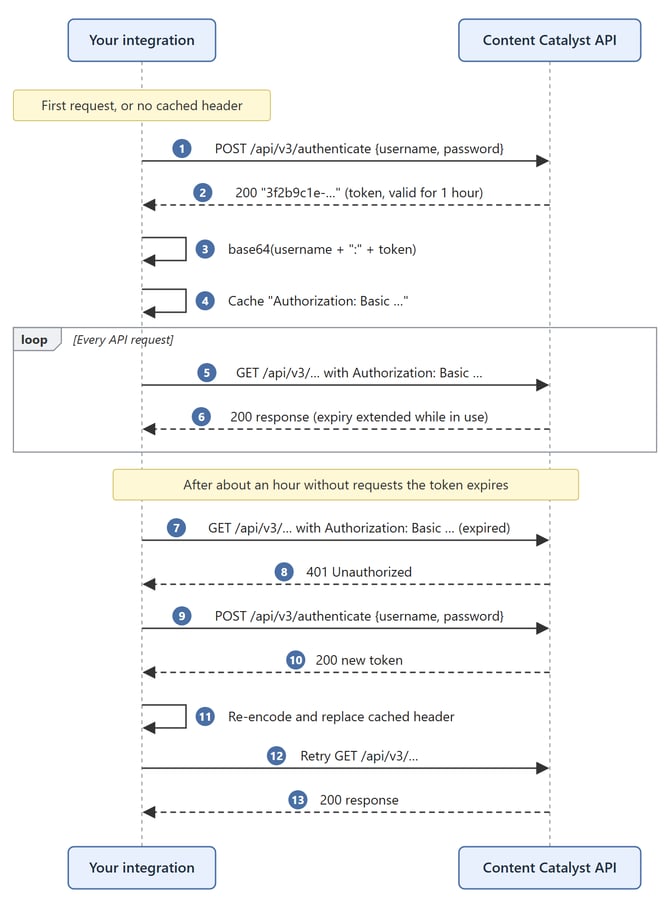
4.1 Password authentication: four jobs before you get any data
Before it can fetch any data, a password-based integration has to do four things:
- Store a password (one that a person may also use to sign in).
- Call
authenticateto swap the password for a short-lived token. - Encode the username and token into a Basic header.
- Cache that header and keep track of when it stops working.
And because the token lasts only about an hour, the integration also needs a recovery path: spot a 401, re-authenticate, rebuild the header and retry the request. Getting the caching wrong is common, and the integration then calls authenticate before every request. That is slow, it hits the rate limit, and it creates a new login session each time.
4.2 API key: one request, one response
With an API key, none of that applies. The key is created once, ahead of time (section 5). After that, every request is a single call and a single response, using the same header every time:
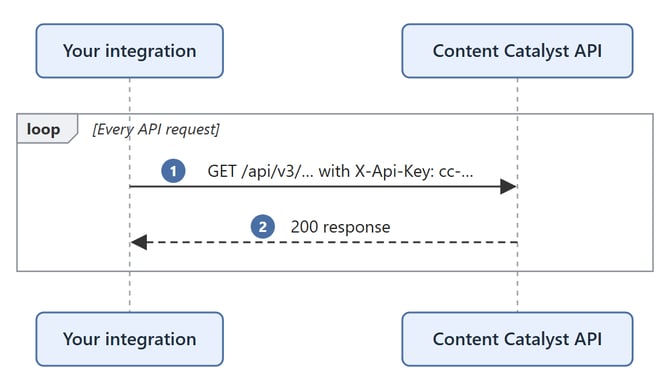
There's no authenticate step, nothing to encode, no cached header to manage, no 401 retry logic, and no password in the integration.
5. Creating an API key
With password authentication, "getting a credential" happens over and over while the integration runs. With API keys it's a one-off setup step, done in the UI or through the API, and then not again until you rotate the key.
Each user creates and manages their own keys. For an integration, that's the service principal user (section 2).
⚠️ The full key is shown only once, when you create it. We store only a one-way hash and can't show it again. Copy it into your secret store straight away (section 10).
5.1 In the UI
The simplest way. It takes a few clicks and no code.
- Sign in to the site as the user the key is for.
- Open your user profile and choose Manage API keys, or go to
https://{your-site}/user/api-keys. - Select Create API key. In the Create a new API key? dialog, choose a Key lifetime (6, 12, 18 or 24 months; the default is 12) and select Create key.
- The Your new API key dialog shows the full key. Select Copy to clipboard, store the key in your secret store, then select I've copied it. This dialog doesn't close if you click outside it or press Esc, so you can't lose the key by accident.
The API keys page lists each key's redacted value, Created date, Expires date, and status (Enabled, Disabled or Expired). Use the switch on each row to disable or re-enable a key, and the bin icon to delete it. Expired keys are greyed out and can't be re-enabled, only deleted.
If you already have 6 keys, the create dialog asks you to delete one first.
A guide article detailing these steps is available here
5.2 Through the API
If you want to automate key creation, POST /api/v3/api-keys creates a key for the calling user. The call has to be authenticated. When you migrate, this is the last time you need the password flow: use your existing Basic header to create the first key. After that, you can authenticate key management calls with an existing API key, and the integration never needs the password again.
The body is { "expiresAt": "<ISO-8601 UTC>" }. The date must be in the future and no more than 2 years ahead.
Response (200 OK):
{
  "id": "b6a1f0d2-3c4e-4f5a-9b8c-7d6e5f4a3b2c",
  "key": "cc-q2Vf...<full key, shown once>...=",
  "redactedKey": "cc-q2Vf9xL...",
  "enabled": true,
  "createdAt": "2026-11-17T10:15:00Z",
  "expiresAt": "2027-11-17T10:15:00Z"
}
Keys start with cc- and may contain +, / and =. Treat the key as an opaque string and don't change or URL-encode it.
For the other key management endpoints (list, disable, re-enable and delete), see section 7.
6. Calling the API
Compare the two subsections below. The password examples in 6.1 need a function or class of 30 to 60 lines that every integration has to write, test and maintain. The API key examples in 6.2 are one to three lines.
Rate limits apply to both methods. Every site has general API rate limits. A client that exceeds them gets a
429 Too Many Requestsresponse. Your integration should handle a429by waiting and then retrying, and should avoid sending bursts of requests it doesn't need. For more about the API and its limits, see the API overview. The examples below leave out429handling to keep them short.Password authentication has an extra limit. Like the site's other sign-in endpoints,
POST /authenticateis protected against brute-force attacks. If it's called too many times too quickly from one IP address, further requests are blocked with403 Forbiddenfor a while. That budget is shared with sign-ins and registrations on the site from the same IP address. An integration that callsauthenticatebefore every request, instead of caching the header (section 6.1), can trip this protection and lock itself out. API keys never callauthenticate, so this doesn't apply to them.
6.1 Password authentication (current): authenticate, encode, cache, recover
A correct password-based client has to get all of these right. Each is a common source of bugs:
- The header uses the token, not the password. It's
base64(username + ":" + token), wheretokenis the valueauthenticatereturned. - Use the same username in the header that you sent to
authenticate: the account's username. If it doesn't match the user the token was issued to, the request fails. - Authenticate once and cache the header. Call
authenticateagain only when a request returns401, and then retry that request once. - Refresh only once when requests run in parallel. If several threads get a
401at the same moment, only one of them should re-authenticate.
Bash (needs curl and jq)
#!/usr/bin/env bash
set -euo pipefail

BASE="https://{your-site}/api/v3"
CC_USER="integration.user"             # the account's username; CC_PASSWORD comes from your secret store
BODY_FILE=$(mktemp); trap 'rm -f "$BODY_FILE"' EXIT

refresh_auth_header() {
  local token
  token=$(curl -sSf -X POST "$BASE/authenticate" -H "Content-Type: application/json" \
            -d "$(jq -n --arg u "$CC_USER" --arg p "$CC_PASSWORD" '{username:$u, password:$p}')" \
          | jq -er .) || { echo "authenticate failed" >&2; return 1; }
  AUTH_HEADER="Authorization: Basic $(printf '%s:%s' "$CC_USER" "$token" | base64 | tr -d '\n')"
}

# GET $1 into $BODY_FILE using the cached header; re-authenticate once on 401.
# Call it directly, not inside $(...): a subshell can't update AUTH_HEADER, so a refreshed
# header would be thrown away and every later call would hit 401 and authenticate again.
cc_get() {
  local status
  status=$(curl -sS -o "$BODY_FILE" -w '%{http_code}' -H "$AUTH_HEADER" "$BASE/$1")
  if [ "$status" = "401" ]; then
    refresh_auth_header
    status=$(curl -sS -o "$BODY_FILE" -w '%{http_code}' -H "$AUTH_HEADER" "$BASE/$1")
  fi
  [[ "$status" == 2* ]] || { echo "GET $1 failed: HTTP $status" >&2; return 1; }
}

refresh_auth_header                    # authenticate once, at the top level
cc_get categories; jq . "$BODY_FILE"
cc_get categories; jq . "$BODY_FILE"   # same cached header, no second authenticate call
Python (needs requests)
import base64, os, threading, requests

class PasswordAuthClient:
    def __init__(self, base, username, password):
        self.base, self.username, self.password = base, username, password
        self.session = requests.Session()
        self._auth_header = None                     # cached Basic header
        self._lock = threading.Lock()

    def _refresh_auth_header(self, stale):
        with self._lock:                             # one refresh, even if several threads get a 401
            if self._auth_header is not None and self._auth_header != stale:
                return                               # another thread has already refreshed it
            r = self.session.post(f"{self.base}/authenticate",
                                  json={"username": self.username, "password": self.password},
                                  timeout=30)
            r.raise_for_status()                     # 400 = wrong username or password
            token = r.json()                         # the body is a JSON string
            raw = f"{self.username}:{token}".encode("iso-8859-1")
            self._auth_header = "Basic " + base64.b64encode(raw).decode("ascii")

    def get(self, path):
        if self._auth_header is None:
            self._refresh_auth_header(None)
        header = self._auth_header
        r = self.session.get(f"{self.base}/{path}", headers={"Authorization": header}, timeout=30)
        if r.status_code == 401:                     # token expired: refresh once, retry
            self._refresh_auth_header(header)
            r = self.session.get(f"{self.base}/{path}",
                                 headers={"Authorization": self._auth_header}, timeout=30)
        r.raise_for_status()
        return r.json()

client = PasswordAuthClient("https://{your-site}/api/v3",
                            "integration.user", os.environ["CC_PASSWORD"])
categories = client.get("categories")
categories = client.get("categories")              # same cached header, no second authenticate call
PowerShell (Windows PowerShell 5.1 or PowerShell 7+)
[Net.ServicePointManager]::SecurityProtocol = [Net.SecurityProtocolType]::Tls12   # needed on Windows PowerShell 5.1

$Base = "https://{your-site}/api/v3"
$User = "integration.user"                     # the account's username; $env:CC_PASSWORD comes from your secret store
$script:AuthHeader = $null

function Update-CcAuthHeader {
    $body  = @{ username = $User; password = $env:CC_PASSWORD } | ConvertTo-Json
    $token = Invoke-RestMethod -Method Post -Uri "$Base/authenticate" -ContentType "application/json" -Body $body
    $bytes = [Text.Encoding]::GetEncoding("ISO-8859-1").GetBytes("${User}:$token")
    $script:AuthHeader = "Basic " + [Convert]::ToBase64String($bytes)
}

function Invoke-CcGet([string]$Path) {
    if (-not $script:AuthHeader) { Update-CcAuthHeader }
    try {
        Invoke-RestMethod -Uri "$Base/$Path" -Headers @{ Authorization = $script:AuthHeader }
    } catch {
        if ($null -eq $_.Exception.Response -or [int]$_.Exception.Response.StatusCode -ne 401) { throw }
        Update-CcAuthHeader                         # token expired: refresh once, retry
        Invoke-RestMethod -Uri "$Base/$Path" -Headers @{ Authorization = $script:AuthHeader }
    }
}

Invoke-CcGet "categories"
Invoke-CcGet "categories"                       # same cached header, no second authenticate call
Update-CcAuthHeader throws if authenticate fails, which stops the script instead of sending a bad header.
C# (.NET 6+)
using System.Net;
using System.Net.Http.Headers;
using System.Net.Http.Json;
using System.Text;

public sealed class PasswordAuthClient
{
    private readonly HttpClient http;
    private readonly string username, password;
    private readonly SemaphoreSlim refreshLock = new(1, 1);
    private AuthenticationHeaderValue? cachedHeader;            // reused for every request

    public PasswordAuthClient(HttpClient http, string username, string password)
        => (this.http, this.username, this.password) = (http, username, password);

    public async Task<string> GetAsync(string path)
    {
        var header = cachedHeader ?? await RefreshHeaderAsync(stale: null);

        using (var response = await SendAsync(path, header))
        {
            if (response.StatusCode != HttpStatusCode.Unauthorized)
            {
                response.EnsureSuccessStatusCode();
                return await response.Content.ReadAsStringAsync();
            }
        }

        header = await RefreshHeaderAsync(stale: header);       // token expired: refresh once, retry
        using var retry = await SendAsync(path, header);
        retry.EnsureSuccessStatusCode();
        return await retry.Content.ReadAsStringAsync();
    }

    private Task<HttpResponseMessage> SendAsync(string path, AuthenticationHeaderValue header)
    {
        var request = new HttpRequestMessage(HttpMethod.Get, path);
        request.Headers.Authorization = header;
        return http.SendAsync(request);
    }

    // Only one caller re-authenticates; callers queued behind it reuse the header it fetched.
    private async Task<AuthenticationHeaderValue> RefreshHeaderAsync(AuthenticationHeaderValue? stale)
    {
        await refreshLock.WaitAsync();
        try
        {
            if (cachedHeader is not null && !ReferenceEquals(cachedHeader, stale))
            {
                return cachedHeader;
            }

            using var resp = await http.PostAsJsonAsync("authenticate", new { username, password });
            resp.EnsureSuccessStatusCode();                      // 400 = wrong username or password
            var token = await resp.Content.ReadFromJsonAsync<string>();   // the body is a JSON string
            var raw = Encoding.Latin1.GetBytes($"{username}:{token}");
            return cachedHeader = new AuthenticationHeaderValue("Basic", Convert.ToBase64String(raw));
        }
        finally
        {
            refreshLock.Release();
        }
    }
}

// Create one client and reuse it.
// var http = new HttpClient { BaseAddress = new Uri("https://{your-site}/api/v3/") };
// var client = new PasswordAuthClient(http, "integration.user", password);
// var json = await client.GetAsync("categories");
// json = await client.GetAsync("categories");          // same cached header, no second authenticate call
6.2 API key (new): just send the header
With an API key, all of 6.1 comes down to adding one header. There's no token, encoding, caching, refresh or locking to get wrong, and there's no password in the integration.
Bash
curl -sSf -H "X-Api-Key: $CC_API_KEY" "https://{your-site}/api/v3/categories"
Python
import os, requests

session = requests.Session()
session.headers["X-Api-Key"] = os.environ["CC_API_KEY"]

r = session.get("https://{your-site}/api/v3/categories", timeout=30)
r.raise_for_status()
categories = r.json()
PowerShell
[Net.ServicePointManager]::SecurityProtocol = [Net.SecurityProtocolType]::Tls12   # needed on Windows PowerShell 5.1

$Headers = @{ "X-Api-Key" = $env:CC_API_KEY }
Invoke-RestMethod -Uri "https://{your-site}/api/v3/categories" -Headers $Headers
C#
var http = new HttpClient { BaseAddress = new Uri("https://{your-site}/api/v3/") };
http.DefaultRequestHeaders.Add("X-Api-Key", Environment.GetEnvironmentVariable("CC_API_KEY"));

var json = await http.GetStringAsync("categories");
Send one credential per request. Don't send Authorization and X-Api-Key together: if either one is invalid, the request is rejected even when the other is valid.
7. Managing your keys through the API
Password authentication has no real equivalent. The only control you have over an integration's access is the user's password, and changing it breaks every integration using that user, all at the same time. API keys are managed one by one: you can list, disable, re-enable and delete each key without affecting the others.
All of these endpoints act only on the calling user's own keys. They accept any valid authentication, including an API key.
| Method & path | Purpose | Success |
|---|---|---|
GET /api/v3/api-keys |
List your keys | 200 + array (below) |
POST /api/v3/api-keys |
Create a key (section 5.2) | 200 + the new key, including the full key |
PUT /api/v3/api-keys/{id}/enabled |
Disable or re-enable. Body: the bare JSON value false or true |
204 No Content |
DELETE /api/v3/api-keys/{id} |
Delete permanently | 204 No Content |
Each item returned by GET /api/v3/api-keys:
| Field | Type | Description |
|---|---|---|
id |
string (uuid) | The key's identifier, used by the enable/disable and delete endpoints |
redactedKey |
string | The first few characters of the key followed by an ellipsis, for display |
enabled |
boolean | Whether the key is enabled. Disabled keys are rejected at authentication time |
createdAt |
string (date-time) | When the key was created, in UTC |
expiresAt |
string (date-time) | When the key expires, in UTC. Expired keys are rejected at authentication time |
The full key is never returned by the list endpoint.
8. Error responses
Both methods return 429 Too Many Requests when your site's general API rate limits are exceeded (see section 6). Password authentication can also get 403 Forbidden from the brute-force protection on authenticate. The two methods treat a 401 very differently. With password authentication, a 401 is a normal event that the integration has to handle automatically (re-authenticate, rebuild the header, retry), on top of the errors authenticate itself can return. With an API key, a 401 simply means the key doesn't work: there's nothing to refresh, and the fix is to check the key.
8.1 Password authentication
| Situation | Response |
|---|---|
Wrong username or password on POST /authenticate |
400 Bad Request, body {"Message":"The request is invalid.","ModelState":{"password":["Username or password is invalid"]}} |
Too many POST /authenticate calls too quickly from one IP address (brute-force protection) |
403 Forbidden from the site's firewall, not a JSON API error. Stop calling authenticate and wait before trying again. Check that your client caches the header (section 6.1) |
| Token expired, unknown, or malformed | 401 Unauthorized, WWW-Authenticate: Basic, empty body. Re-authenticate once and retry |
| Site's general API rate limit exceeded | 429 Too Many Requests. Wait, then retry |
8.2 API key
| Situation | Response | What to do |
|---|---|---|
| Key unknown, mistyped, disabled, deleted, or expired | 401 Unauthorized, WWW-Authenticate includes ApiKey, empty body |
Check the key on the API keys page. Retrying the same key won't help |
| Can use API keys turned off for the key's user | 401 Unauthorized |
Check the preference (section 3) |
| No credential sent to a protected endpoint | 401 Unauthorized |
Add the X-Api-Key header |
| Valid key, but the user lacks permission for the resource | 403 Forbidden |
Same as with password authentication. The key has exactly the user's permissions |
/api-keys call by a user without Can use API keys |
403 Forbidden |
Turn on the preference for that user |
POST /api-keys with expiresAt missing, in the past, or more than 2 years ahead |
400 Bad Request with a ModelState body, for example "ExpiresAt must be no more than 2 years in the future." |
Fix the date |
PUT/DELETE on an id that doesn't exist or belongs to another user |
404 Not Found |
|
| Site's general API rate limit exceeded | 429 Too Many Requests |
Wait, then retry. The key is still valid. See the note on rate limits in section 6 |
For API keys, the 401 body is empty. Its cause appears only in the HTTP reason phrase (for example Invalid API key), and HTTP/2 connections drop reason phrases. Treat any 401 as "this key no longer works".
9. Migration steps
- Choose or create the service principal user the integration will run as (section 2). The key will have exactly that user's permissions. Turn on Can use API keys for that user (section 3).
- Create a key in the UI or through the API (section 5), with an expiry that fits your rotation policy.
- Store the key in your secret store (section 10).
- Simplify the client: remove the
authenticatecall, the Basic-header encoding and caching, and the401refresh logic. SendX-Api-Keyinstead (section 6.2). - Deploy and confirm requests succeed. You can run password authentication and the key side by side during the cutover.
- Remove the stored password from the integration's configuration. If only the integration used that password, consider changing it.
- Set a reminder or alert well before the key's
expiresAt(section 10.3).
10. Secret management, rotation and revocation
10.1 Standards
Store and handle API keys according to your organisation's security policy. If you don't have one for API credentials, these public standards cover the subject in depth:
| Standard | What it covers |
|---|---|
| OWASP Secrets Management Cheat Sheet | Storing secrets in a secrets manager, injecting them at runtime, access control, auditing, rotation, and responding to a leaked secret |
| OWASP REST Security Cheat Sheet (section "API Keys") | Using API keys safely: HTTPS only, sending keys in headers rather than URLs, revocation |
| OWASP API Security Top 10 (2023): API2 Broken Authentication | Common authentication weaknesses in API clients and integrations |
| OWASP Logging Cheat Sheet | Keeping secrets such as keys and tokens out of logs |
| NIST SP 800-57 Part 1 Rev. 5 | The key lifecycle and how to choose a cryptoperiod (how long a key stays in use), which can guide your expiry and rotation intervals |
| CIS Critical Security Controls v8: Control 5 (Account Management) and Control 6 (Access Control Management) | Service accounts and least privilege (see also section 2) |
| ISO/IEC 27002:2022, control 5.17 "Authentication information" | Managing authentication secrets, if your organisation follows ISO/IEC 27001 |
10.2 How the API supports these practices
| Practice in the standards | API key feature |
|---|---|
| Keep secrets out of code and inject them at runtime | The key is a single header value, so it works with any secrets manager, environment variable, or secret mount |
| A separate credential for each system or environment | Up to 6 keys per user, each revoked on its own |
| Non-personal accounts with least privilege | A key has exactly its user's permissions. Run each integration as a service principal user that has only the access it needs (section 2) |
| Limited credential lifetime and regular rotation | Every key must have an expiry (at most 24 months). Overlapping keys let you rotate without downtime (section 10.3) |
| Revoke quickly | Disable or delete takes effect on the next request. Turning off the Can use API keys preference blocks all of a user's keys at once (section 10.4) |
| Protect credentials in transit | Keys are only accepted in the X-Api-Key request header, over HTTPS. They're never accepted in a URL |
| Identify credentials without exposing them | Each key's id and redactedKey let you refer to it in logs, tickets and inventories without revealing the key |
| Detect failed authentication | Expired, disabled, deleted or unknown keys return 401 (section 8.2) |
10.3 Rotation without downtime: an example
Rotating a password used by an integration means changing it and updating every client at the same moment, with an outage if any client lags. API keys avoid this. A user can hold up to 6 keys and use them all at once, so the old key and the new one can overlap.
The sequence below shows one example of how you might rotate a key. It's not a fixed procedure, so adapt it to your own deployment process and policy.
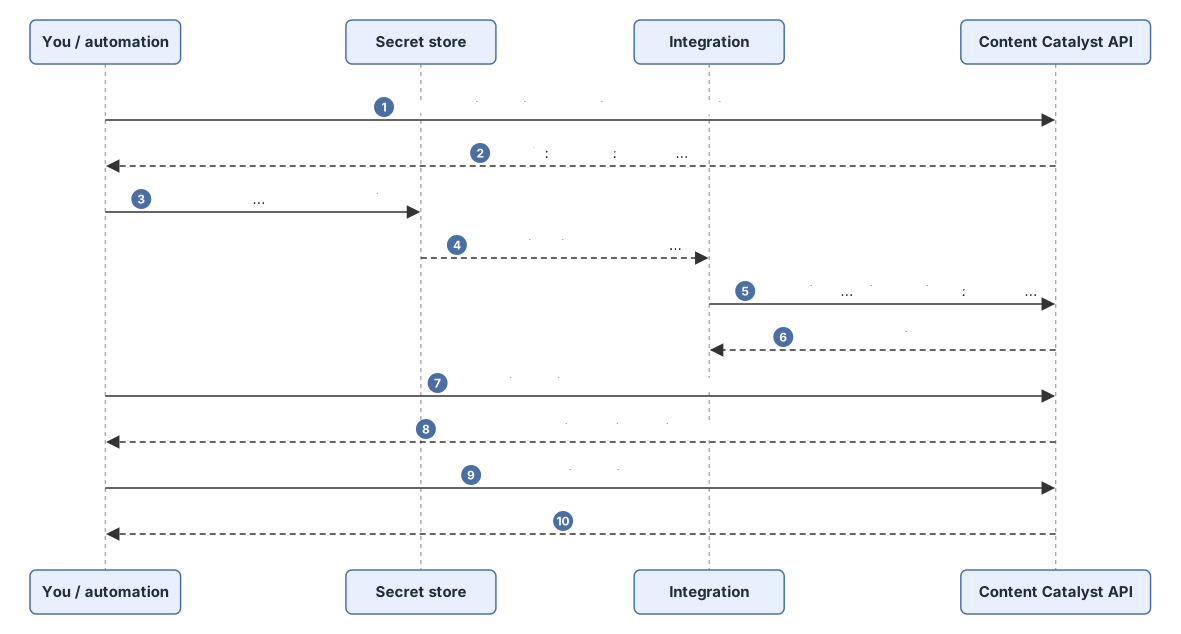
For example, you might:
- Create a new key (section 5).
- Store it in your secret store and deploy it to every client that used the old key.
- Check that requests succeed with the new key.
- Disable the old key. If something breaks, re-enable it while you investigate.
- Delete the old key once you're confident.
Things to know, whatever process you use:
- How often to rotate is set by your own policy. The standards in section 10.1 (in particular the OWASP Secrets Management Cheat Sheet and NIST SP 800-57) cover choosing an interval and rotating straight away after a suspected exposure.
- Expired keys can't be renewed or re-enabled, and we don't send expiry warnings. Track each key's expiry yourself, for example by recording the
expiresAtdate against the key in your secret store and monitoring it there. Many secret managers let you set an expiry date on a secret and alert before it's reached. - Each key's
idstays the same for its whole life, so you can record which system uses which key. - If you already have 6 keys, delete an unused one before creating a new one.
10.4 Revocation
With password authentication, the only ways to cut off an integration are to wait for its token to expire or to change the user's password, and changing the password affects everything that uses it. API keys can be revoked one at a time, straight away:
| Action | How | Effect | Reversible? |
|---|---|---|---|
| Disable | The switch on the API keys page, or PUT /api/v3/api-keys/{id}/enabled with false |
The key is rejected (401) from the next request |
Yes, re-enable it |
| Delete | The bin icon on the API keys page, or DELETE /api/v3/api-keys/{id} |
The key is rejected from the next request and erased | No |
| Expiry | Automatic at expiresAt |
The key is rejected | No. Create a new key |
| Preference off | Turn off Can use API keys for the user, their account, or globally | All of the affected users' keys are rejected | Yes, turn it back on |
If a key is compromised:
- Disable or delete it straight away.
- List the user's keys (
GET /api/v3/api-keys, or the API keys page) and delete any you don't recognise. Anyone holding a valid key can call the key management endpoints, including to create more keys. - Create a replacement key and deploy it.
- If you need to cut off all access at once, turn off Can use API keys for that user while you investigate.
11. FAQ
Do I need to change endpoints or payloads? No. Only the authentication header changes.
Can a key do more than its user? No. Both methods act as one user, with exactly that user's permissions. If the user's permissions change, the key's access changes with them.
Does changing the user's password affect their keys? No. Keys are separate from the password. Disable or delete them separately if needed. The password is still how the user signs in to the UI to manage their keys.
How many keys can a user have? Up to 6, all usable at the same time.
Can an administrator see or revoke every key on the site? Not currently. There's no endpoint or screen that lists all keys for all users. Administrators can see who is allowed to use API keys with Analysis › General › List API key users, and can turn off a user's access at once through the Can use API keys preference.
Usage logs and reporting
Are usage logs available for each key? Not currently. Reporting doesn't break API activity down by key. Here's what that means for each kind of information:
| Information | Available? | Notes |
|---|---|---|
| When each key was created, when it expires, and whether it's enabled | Yes | Shown on the API keys page and returned by GET /api/v3/api-keys, for the user's own keys |
| Last time a key was used | No | |
| Endpoints called with a key | No | |
| Failed requests using a key | No | Your integration receives the 401 or 403 response (section 8.2), so record failures on your side |
| Who created, disabled, re-enabled or deleted a key | Not recorded | Only the key's own user can manage it, either signed in to the UI or through the API with that user's credentials. No other user, including an administrator, can manage someone else's keys |
How can we keep our own usage records? Log the key's id or redactedKey (never the full key) alongside the integration's outbound requests and their response codes. Running each integration as its own service principal user (section 2), with one key per system, makes those records easy to attribute.
Which users can create keys? Run Analysis › General › List API key users (section 3). It shows where the Can use API keys preference is set and its value. It doesn't list the keys themselves.